Weegee at ICP
http://www.icp.org/museum/exhibitions/weegee-murder-my-business
Richard Avedon at Gagosian
http://www.gagosian.com/exhibitions/richard-avedon--may-04-2012
Reneke Dikestra at Guggenheim
http://www.guggenheim.org/new-york/exhibitions/upcoming/rineke-dijkstra-a-retrospective
Taryn Simon
http://www.moma.org/visit/calendar/exhibitions/1248
How to Make Good Pictures at MoMA
http://www.moma.org/visit/calendar/exhibitions/1280
Wednesday, June 27, 2012


Wednesday, June 20, 2012


Wednesday, June 6, 2012


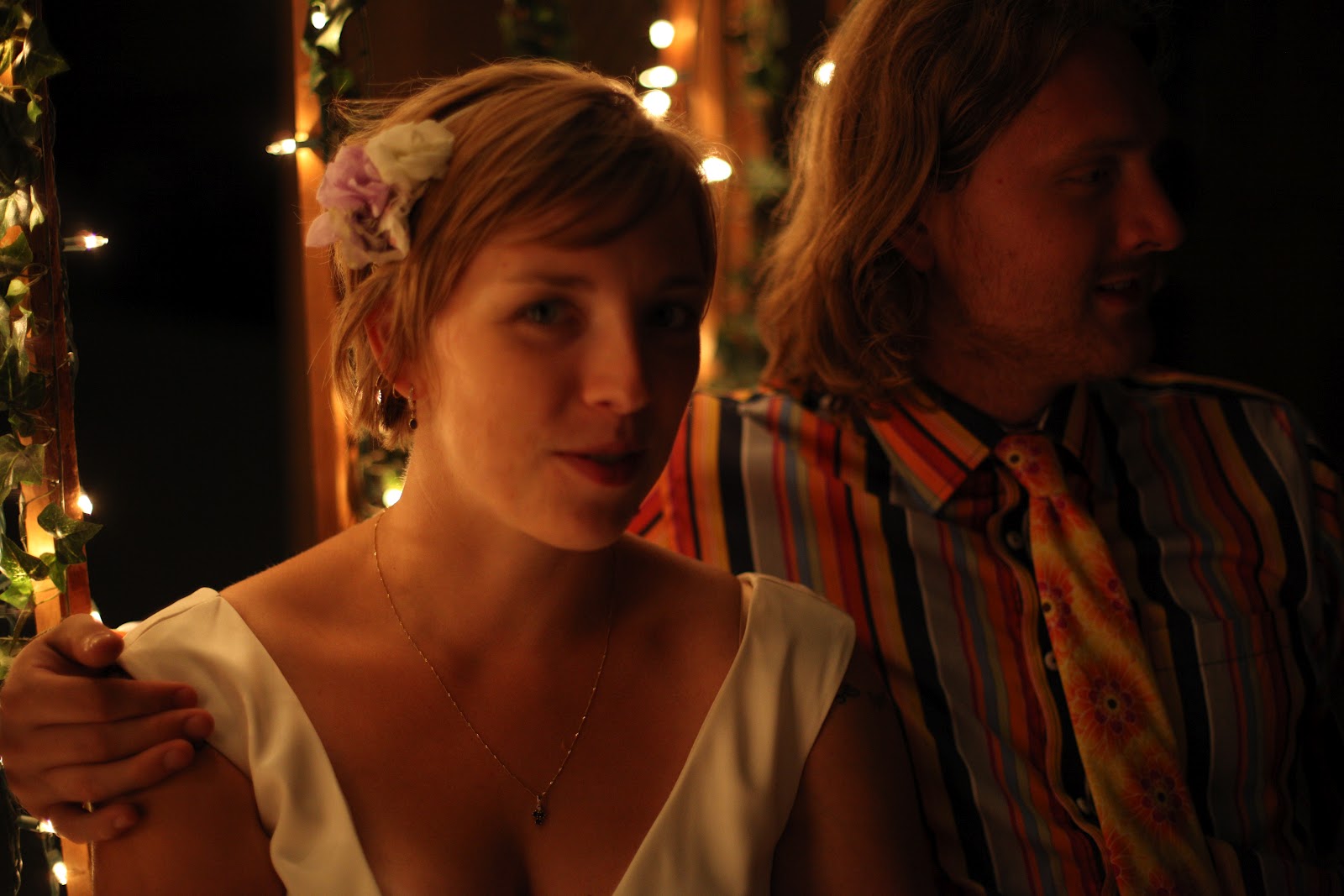
images for white balance settings on camera

auto wb

sunlight

cloudy

tungsten

flourescent

flash wb (but didn't use any flash)
color cast
adjusting color cast in old photos
http://www.cambridgeincolour.com/tutorials/digital-photo-restoration.htm
http://www.cambridgeincolour.com/tutorials/digital-photo-restoration.htm
Wee Gee's Birthday at ICP
http://www.icp.org/events/2012/june/12/weegees-birthday-party
Weegee's Birthday Party
ICP, 1133 Avenue of the Americas
Tuesday, June 12, 10:00am
Celebrate Weegee's 113th birthday with us! ICP will host additional tours of Weegee: Murder Is My Business
throughout the afternoon at 1 pm, 2 pm, 3 pm, and 4 pm. Each tour runs
for approximately 30 minutes and is led by our knowledgeable gallery
guides. Receive free admission to the museum by dressing like
Weegee—wear a fedora or create your own "official" press badge
Tuesday, June 5, 2012
Color Adjustments
http://help.adobe.com/en_US/photoshop/cs/using/WSfd1234e1c4b69f30ea53e41001031ab64-764fa.html
Change the color balance using the Photo Filter command
The
Photo Filter adjustment mimics the technique of placing a colored
filter in front of the camera lens to adjust the color balance and
color temperature of the light transmitted through the lens and
exposing the film. Photo Filter also lets you choose a color preset
to apply a hue adjustment to an image. If you want to apply a custom
color adjustment, the Photo Filter adjustment lets you specify a color
using the Adobe Color Picker.
- Do one of the following:
- Click the Photo Filter icon
in the Adjustments panel.
- Choose Layer > New Adjustment Layer >
Photo Filter. Click OK in the New Layer dialog box.
Note: You can also choose Image > Adjustments > Photo Filter. But keep in mind that this method makes direct adjustments to the image layer and discards image information. - Click the Photo Filter icon
Apply the Color Balance adjustment
The
Color Balance command changes the overall mixture of colors in an
image for generalized color correction.
- Do one of the following:
- Click the Color Balance icon
in the Adjustments panel.
- Choose Layer > New Adjustment Layer >
Color Balance. Click OK in the New Layer dialog box.
Note: You can also choose Image > Adjustments > Color Balance. But keep in mind that this method makes direct adjustments to the image layer and discards image information. - Click the Color Balance icon
Apply the Brightness/Contrast adjustment
The
Brightness/Contrast adjustment lets you make simple adjustments
to the tonal range of an image. Moving the brightness slider to
the right increases tonal values and expands image highlights, to
the left decreases values and expands shadows. The contrast slider
expands or shrinks the overall range of tonal values in the image.
In normal mode, Brightness/Contrast applies proportionate (nonlinear) adjustments to image layer, as with Levels and Curves adjustments. When Use Legacy is selected, Brightness/Contrast simply shifts all pixel values higher or lower when adjusting brightness. Since this can cause clipping or loss of image detail in highlight or shadow areas, using Brightness/Contrast in Legacy mode is not recommended for photographic images (but can be useful for editing masks or scientific imagery).
In normal mode, Brightness/Contrast applies proportionate (nonlinear) adjustments to image layer, as with Levels and Curves adjustments. When Use Legacy is selected, Brightness/Contrast simply shifts all pixel values higher or lower when adjusting brightness. Since this can cause clipping or loss of image detail in highlight or shadow areas, using Brightness/Contrast in Legacy mode is not recommended for photographic images (but can be useful for editing masks or scientific imagery).
Note: Use Legacy is automatically selected when
editing Brightness/Contrast adjustment layers created with previous
versions of Photoshop.
- Do one of the following:
- Click the Brightness/Contrast icon
in the Adjustments panel.
- Choose Layer > New Adjustment Layer >
Brightness/Contrast. Click OK in the New Layer dialog box.
Note: You can also choose Image > Adjustments > Brightness/Contrast. But keep in mind that this method makes direct adjustments to the image layer and discards image information. - Click the Brightness/Contrast icon
Adjust black and white points with the Auto option
The Auto option for Levels and Curves
and the Auto Tone command automatically adjust the black point and
white point in an image. This clips a portion of the shadows and
highlights in each channel and maps the lightest and darkest pixels in
each color channel to pure white (level 255) and pure black (level
0). The intermediate pixel values are redistributed proportionately.
As a result, using the Auto option or Auto Tone increases the contrast
in an image because the pixel values are expanded. Because the Auto
option and Auto Tone adjust each color channel individually, it
may remove color or introduce color casts.
The Auto option and Auto Tone give good results in certain images with an average distribution of pixel values that need a simple increase in contrast.
By default, the Auto option and the Auto Tone command clip the white and black pixels by 0.1%—that is, it ignores the first 0.1% of either extreme when identifying the lightest and darkest pixels in the image. The default settings for the Auto option can be changed in the Auto Color Correction Options dialog box.
The Auto option and Auto Tone give good results in certain images with an average distribution of pixel values that need a simple increase in contrast.
By default, the Auto option and the Auto Tone command clip the white and black pixels by 0.1%—that is, it ignores the first 0.1% of either extreme when identifying the lightest and darkest pixels in the image. The default settings for the Auto option can be changed in the Auto Color Correction Options dialog box.
Apply the Auto Contrast adjustment
The Auto Contrast command adjusts
image contrast automatically. Because Auto Contrast does not adjust
channels individually, it does not introduce or remove color casts.
It clips the shadow and highlight values in an image and then maps the
remaining lightest and darkest pixels in the image to pure white
(level 255) and pure black (level 0). This makes the highlights
appear lighter and shadows appear darker.
By default, when identifying the lightest and darkest pixels in an image, Auto Contrast clips the white and black pixels by 0.5%—that is, it ignores the first 0.5% of either extreme. You can change this default using the Auto Color Correction Options found in the Levels and the Curves dialog boxes.
Auto Contrast can improve the appearance of many photographic or continuous-tone images. It does not improve flat‑color images.
By default, when identifying the lightest and darkest pixels in an image, Auto Contrast clips the white and black pixels by 0.5%—that is, it ignores the first 0.5% of either extreme. You can change this default using the Auto Color Correction Options found in the Levels and the Curves dialog boxes.
Auto Contrast can improve the appearance of many photographic or continuous-tone images. It does not improve flat‑color images.
Remove a color cast using Auto Color
Auto
Color adjusts the contrast and color of an image by searching the
image to identify shadows, midtones, and highlights. By default,
Auto Color neutralizes the midtones using a target color of RGB
128 gray and clips the shadows and highlight pixels by 0.5%. You
can change these defaults in the Auto Color Correction Options dialog
box.
Set Auto adjustment options
The
Auto Color Correction options control the automatic tone and color
corrections available in both Levels and Curves. It also controls
the settings for the Auto Tone, Auto Contrast, and Auto Color commands.
The Auto Color Correction options let you specify shadow and highlight
clipping percentages, and assign color values to shadows, midtones,
and highlights.
You can apply the settings during a single use of the Levels or Curves adjustment, or you can save the settings as default values when applying Auto Tone, Auto Contrast, Auto Color, and the Auto option for Levels and Curves.

You can apply the settings during a single use of the Levels or Curves adjustment, or you can save the settings as default values when applying Auto Tone, Auto Contrast, Auto Color, and the Auto option for Levels and Curves.
Auto Color Correction Options dialog box
- A.
- Auto Contrast option
- B.
- Auto Levels option
- C.
- Auto Color option
- D.
- Set target colors, black point, and white point
Apply the Variations command
The
Variations command lets you adjust the color balance, contrast,
and saturation of an image by showing you thumbnails of alternatives.
This command is most useful for average-key images that don’t require
precise color adjustments.
Note: The Variations command is unavailable
for indexed-color images, 16-bit images, and 64-bit versions of
Mac OS.
Using the Equalize command
The
Equalize command redistributes the brightness values of the pixels
in an image so that they more evenly represent the entire range
of brightness levels. Equalize remaps pixel values in the composite
image so that the brightest value represents white, the darkest
value represents black, and intermediate values are evenly distributed
throughout the grayscale.
You can use the Equalize command when a scanned image appears darker than the original and you want to balance the values to produce a lighter image. Using Equalize together with the Histogram panel lets you see before-and-after brightness comparisons.
You can use the Equalize command when a scanned image appears darker than the original and you want to balance the values to produce a lighter image. Using Equalize together with the Histogram panel lets you see before-and-after brightness comparisons.


Wednesday, May 30, 2012


Red Eye Removal
Red eye is caused by a reflection of the camera flash in the subject’s retina. You’ll see it more often when taking pictures in a darkened room because the subject’s iris is wide open. To avoid red eye, use the camera’s red eye reduction feature. Or, better yet, use a separate flash unit that you can mount on the camera farther away from the camera’s lens.
Remove red eye
The Red Eye tool removes red eye in flash photos of people or animals.- In
RGB Color mode, select the Red Eye tool
 . (The Red Eye tool is in the same group
as the Spot Healing Brush tool
. (The Red Eye tool is in the same group
as the Spot Healing Brush tool  . Hold down a tool to display additional
tools in the group.)
. Hold down a tool to display additional
tools in the group.) - Click in the red eye. If you are not satisfied with the result, undo the correction, set one or more of the following options in the options bar, and click the red eye again:
Pupil
Size
Increases or decreases the area affected by the Red
Eye tool.
Darken
Amount
Sets the darkness of the correction.
Fix Red Eye
in Photoshop
1.
Open
the image.
2.
Go to
Image > Duplicate and close the original.
3.
In
Photoshop 6 or earlier, go to View > New View. In Photoshop 7 go to Window
> Documents > New Window. This will open a duplicate window of the same
image.
4.
Zoom
one of the windows so that you can see the eyes as large as possible. Set the
other window view to 100%.
5.
Arrange
the two windows so you can see both the zoomed view and the 100% view at the
same time.
6.
Create
a new layer.
7.
Use
the eyedropper to pick up a color from the iris of the eye. It should be a fairly
gray tint with a hint of the eye color.
8.
Paint
over the red part of the eye on the new layer, being careful not to paint over
the eyelids.
9.
Go to
Filters > Blur > Gaussian and give it about a 1 pixel blur to soften the
edges.
10.
Set
the layer blend mode to Saturation. This will take the red out without removing
the highlights, but in many cases it leaves the eyes too gray and hollow
looking.
11.
If
that's the case, duplicate the saturation layer and change the blend mode to
Hue. That should put some color back in while still preserving the highlights.
12.
If the
color is too strong after adding a Hue layer, lower the opacity of the Hue
layer.
13.
When
you're happy with the results you can merge the extra layers down.
Tips:
1.
If you
need to darken the pupil area, use the burn tool. It should only take a couple
of taps with the burn tool to darken the pupils.
2.
Before
merging your layers, use the eraser tool to clean up any overspray from
painting outsideof the iris.
Fix Red Eye
in Photoshop Elements
1.
Open
the photo.
2.
Go to
View > New View to open a duplicate window.
3.
Zoom
in on one window so you can see the eyes and arrange the Windows you can see
both the zoomed in view and the actual size view.
4.
If the
layers palette is not visible, display it by going to Window > Show Layers.
5.
Click
the "create a new layer" button at the bottom of the layers palette.
6.
At the
top of the layers palette, use the blending mode menu to change this new
layer's blending mode to Color.
7.
Click
the foreground color swatch in the tool box and select the replacement eye
color.
8.
Select
the paintbrush tool.
9.
In the
options bar, choose a soft-edged brush, slightly smaller than the red eye area.
Click on opacity and set it low, to about 30%.
10.
Gradually
paint over the red area in the eyes, being careful not to paint over the white
of the eyes or the skin around the eyes. Zoom in closer if you need more
control.
Tips:
1.
Because
we use a low opacity brush, you will probably need to build up the color in
several passes. Every time you release and press the mouse button, you will
build up more color.
2.
If you
overdo it, you can use the opacity slider on the layer palette to reduce the
color.
3.
If you
accidentally paint outside of the iris area, it's easy to clean up because
you're on a separate layer. Just use the eraser tool to remove any stray color,
or trash the layer and try again.
4.
When
you're happy with the results you can merge the layer down or flatten the image
from the Layer menu
Wednesday, May 23, 2012
retouch with the clone stamp tool
http://helpx.adobe.com/photoshop/using/retouching-repairing-images.html#retouch_with_the_clone_stamp_tool
http://www.smashingmagazine.com/2010/03/30/the-ultimate-guide-to-cloning-in-photoshop/
http://www.smashingmagazine.com/2010/03/30/the-ultimate-guide-to-cloning-in-photoshop/
Clone Stamp
1. The clone stamp tool is located
on your tools panel.
If you do not see the tools panel (a
vertical set of icons), go to window>tools to bring it up. Click the clone
tool to select it.
The keyboard shortcut is (S)
2. Once you have selected the clone
stamp tool, you can set your brush options (located at the top of the screen).
Brush size and shape, opacity, flow
and blending modes can all be selected. If you want to copy an exact area you
will leave the opacity, flow and blending mode at their default settings and
only choose a brush size and shape.
3. To select the area you want to
copy from, move your mouse to the area you want to duplicate and Alt-click
(Windows) or Option-click (Mac). The cursor will change to a target. Click the
exact spot you want to start copying from.
4. Click and drag over the area you
want to replace or correct and you will see the area you selected in step 3
start to "cover" your photo. Play around with different brush
settings and try replacing different areas of your photo until you get the hang
of it.
5. It is important to pay attention
to the location of the + sign as you are covering over the area you want to
replace. If you have selected “Aligned”
in the menu bar the + sign will move as you move your brush. You may want to
reset the target from time to time.


Wednesday, May 9, 2012

Healing Brush Tool
What does aligned mean?
http://www.photokaboom.com/photography/learn/photoshop_elements/aligned/1_aligned.htm
Retouch with the healing brush tool:
http://helpx.adobe.com/photoshop/using/retouching-repairing-images.html#retouch_with_the_healing_brush_tool
Spot healing brush tool:
http://helpx.adobe.com/photoshop/using/retouching-repairing-images.html#retouch_with_the_spot_healing_brush_tool
Patch tool:
http://helpx.adobe.com/photoshop/using/retouching-repairing-images.html#patch_an_area
http://www.photokaboom.com/photography/learn/photoshop_elements/aligned/1_aligned.htm
Retouch with the healing brush tool:
http://helpx.adobe.com/photoshop/using/retouching-repairing-images.html#retouch_with_the_healing_brush_tool
Spot healing brush tool:
http://helpx.adobe.com/photoshop/using/retouching-repairing-images.html#retouch_with_the_spot_healing_brush_tool
Patch tool:
http://helpx.adobe.com/photoshop/using/retouching-repairing-images.html#patch_an_area


Subscribe to:
Posts (Atom)